LPH Customized SuiteCRM provides excellent SuiteCRM Tutorials including pages with detailed instructions and screenshots. LPH is here to assist your success

LPH SuiteCRM Word Mail Merge Process
1. Download SuiteCRM Word Merge Plugin from https://support.sugarcrm.com/Documentation/Plug-ins/MS_Word_Plug-in/MS_Word_Plug-in_Installation_Guide/ The program is a free download for users' mail merging less than 30 letters a one session.
2. Prerequisites —The following essential prerequisites can be downloaded automatically during installation if required:
Microsoft .NET Framework 3.5 Service Pack 1 (SP1)
Microsoft Visual Studio Tools for the Microsoft Office system (version 3.0 Runtime)
Microsoft Visual Studio Tools for the Microsoft Office System (version 3.0 Runtime) Service Pack 1
2007 Microsoft Office system Primary Interop Assemblies (PIA) redistributable
3. Install the program on your local computer
4. Open Microsoft Word
5. Click on CRM2Office. See below.

6. The menu below will display. 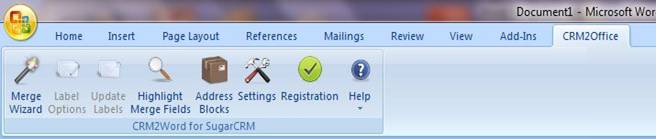
7. Click on Settings. The menu below will display. Fill in CRM URL, User Name and Password with the same permissions that you use to sign on to your LPH SuiteCRM account.
8. Click OK.
9. Create a new document or call up an existing document that you want to serve as the basis for a mail merge template.
10. Click on the Mail Merge Wizard 
11. The CRM2 Word Mail Merge Wizard will display on the right side of your computer screen. 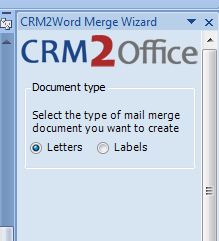
12. Select Letters. Click on Next. A new screen will display. 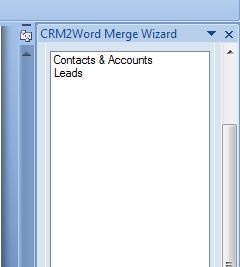
13. Select Contacts & Accounts. Click Next. 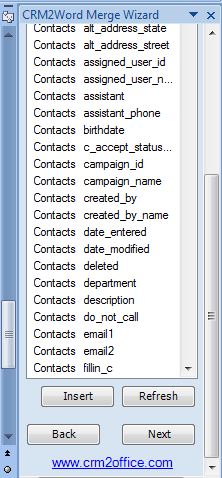
A new screen will display as list of fields from LPH SuiteCRM. (See image above) Select a field you want to insert into the text. Place your cursor on the place on the mail merge document where you want the field. Next click on insert. Repeat the process until all the fields are entered. When all the fields have been entered Click next.
14. A Sample Document below shows the inserted fields (underlined in red) 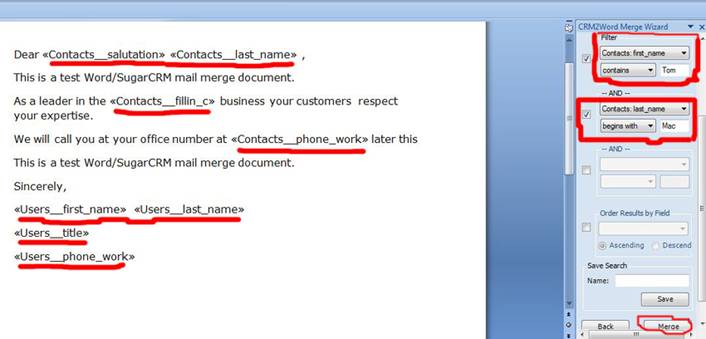 The new screen on the right side (above) displays
15. Select one or more filters. (Circled in red) See the examples above. After the filters have been selected Click Merge. A new page will display in Word. See the document below that was created using the mail merge fields and filter in the above image. 
