This LPH Customized CRM tutorial and all the other tutorials are a part of LPH's commitment to make our customers as productive as possible and promote the ease of using LPH Customized CRM and reduce the amount of effort required.
To make all your activities visible in the reports please use the following process:
1.
In the Activities Section click on Log Call when you want to record an
interaction with a customer.

2. The menu below will pop up. Fill in the subject line and description. Select Outbound and
Held. Click on Save.
The information will be stored in the History section of the Account.
3. Scroll to the History Section. All history will be listed. To see the details of all history events
Click on view Summary.
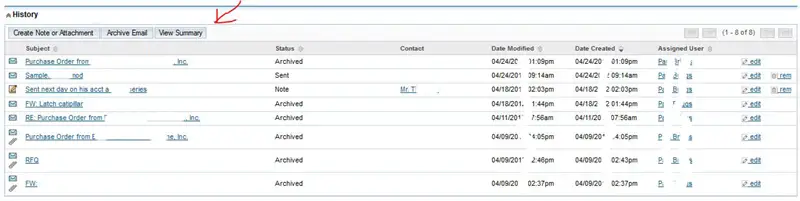
4. A pop up page will display the detail for all history events. See below.
By using the system in this manner all your activities will be visible to management
in the User Activity report and you will be able to see the entire details of all interactions
with the customer.
