This LPH Customized SuiteCRM tutorial and all the other tutorials are a part of LPH's commitment to make our customers as productive as possible and promote the ease of using LPH Customized SuiteCRM and reduce the amount of effort required.
The process for adding more leads to the LPH SuiteCRM database
Leads are potential customers that your business as identified possible clients.
Customers that you have worked with/currently working with should be entered into the system as Leads and conveted to Contacts and Accounts,
To add more leads to your LPH SuiteCRM database you can import * MSOutlook Contact information or Click on create a new lead.
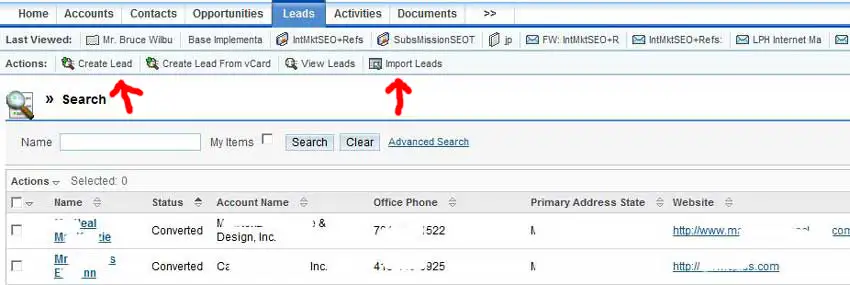
When you click on "Create Lead" a new window open up as displayed below.
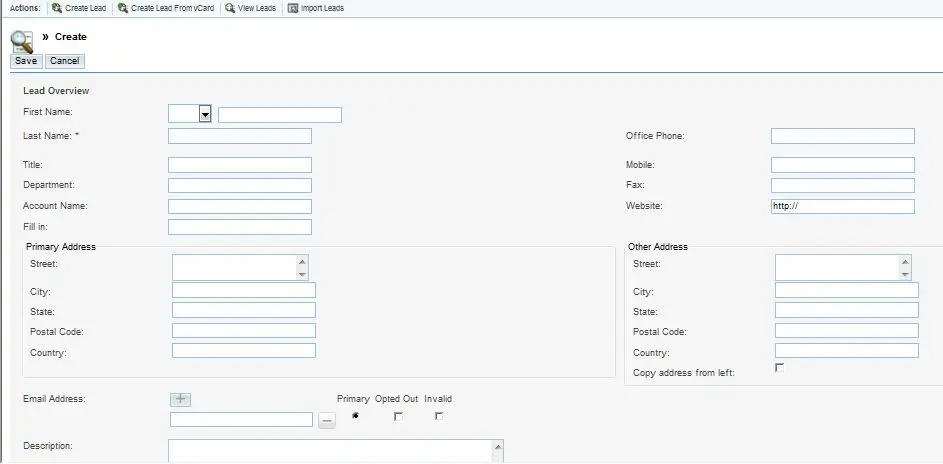
Fill in the information in the form above and click save. The lead is now in the SuiteCRM system.
Importing Leads from the other sources is a multi step process. LPH will assist the process. It is usually done when first using the LPH SuiteCRM system and is usually a one time process.
1. The Account/Lead/Contact data is formatted to be compatible with the SuiteCRM database. LPH will assist the process.
2. The data is imported into SuiteCRM.
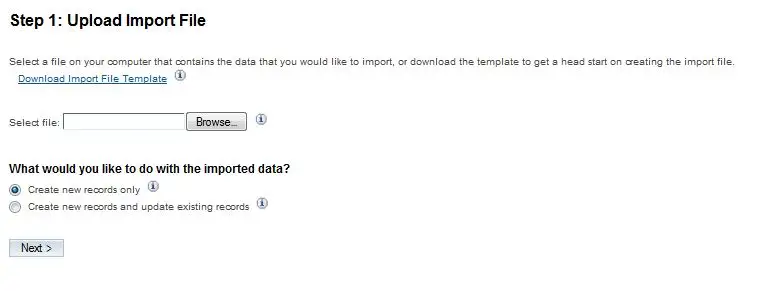
* Caution if you don't know how to work with databases don't attemp to do an import of data
Browse and select the file you want to import.
Select either "create new records only" or "create new records and update existing records"
Use the update option if some of the names are already in the database
click on "Next" to import the data.
